Masterful Aesthetic.
Powerful Analysis.
Analyze, train, and play with full-strength Stockfish 18 and Maia (LC0) engines — entirely offline, no account required — on macOS, Windows, Linux, iOS, and Android.
Elevate Your Game
Dual-Engine Analysis
Full-strength Stockfish 18 for tactical precision and Maia (LC0) for a human-like neural perspective — both running locally with zero network lag.
Fully Offline & Private
No account, no server, no data collection. Every game, analysis, and puzzle lives entirely on your device.
Opening Book
Polyglot-format opening book with ECO classification provides in-game guidance and post-move opening review.
Tactical Puzzle Training
Seven puzzle modes including personal blunder extraction from your own games, Streak, Storm, Blind, Thematic, and No-Tactic modes.
Intelligent Sparring
Play against local engines with adjustable difficulty from beginner to master strength.
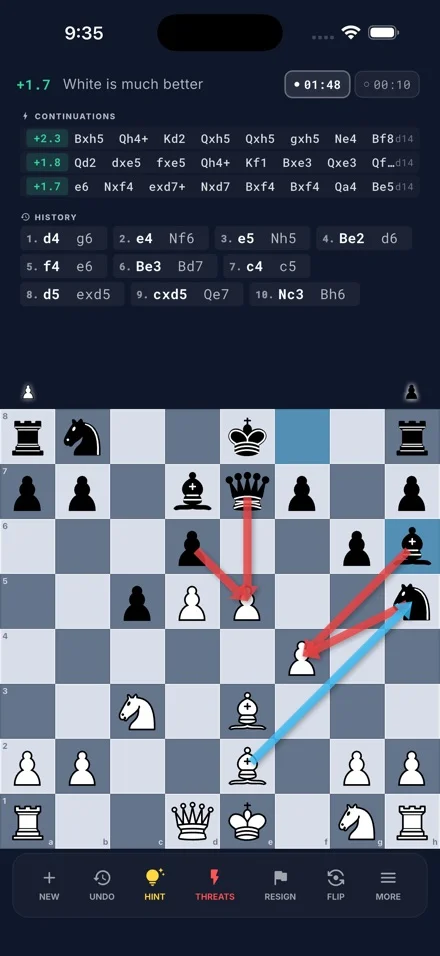
Hint & Threat Visualization
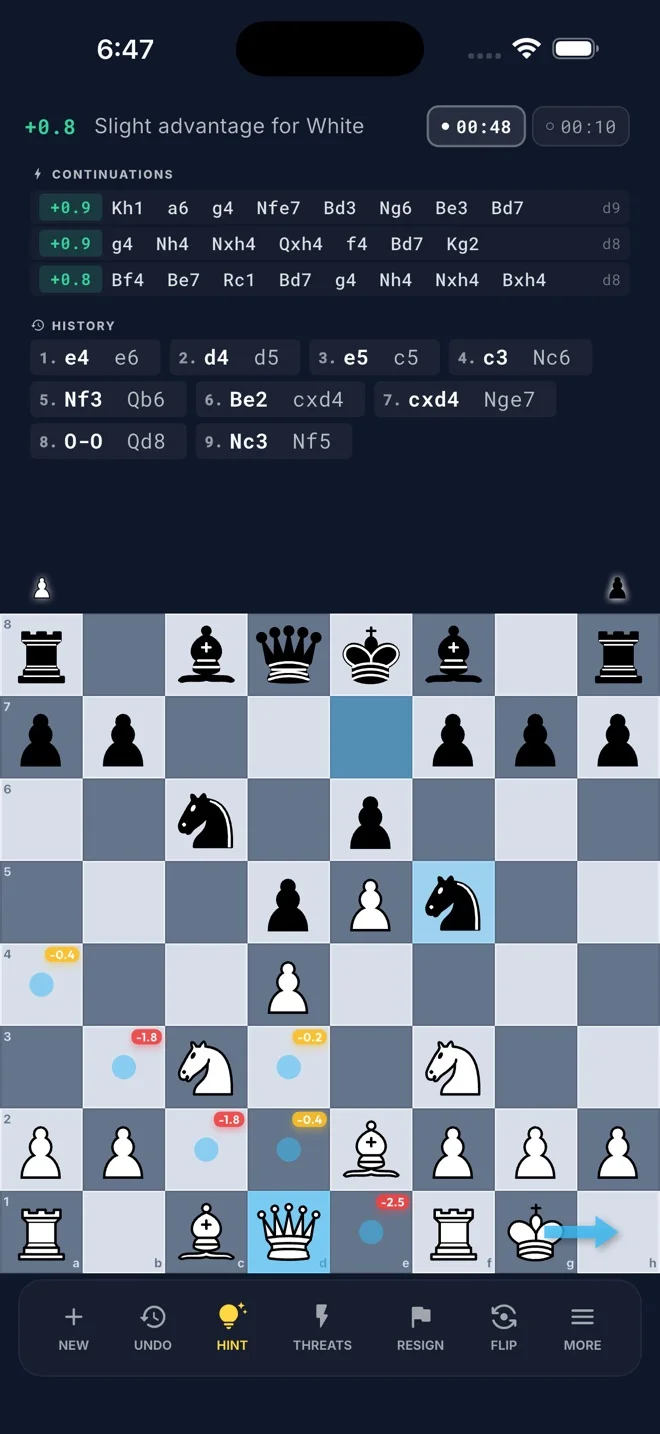
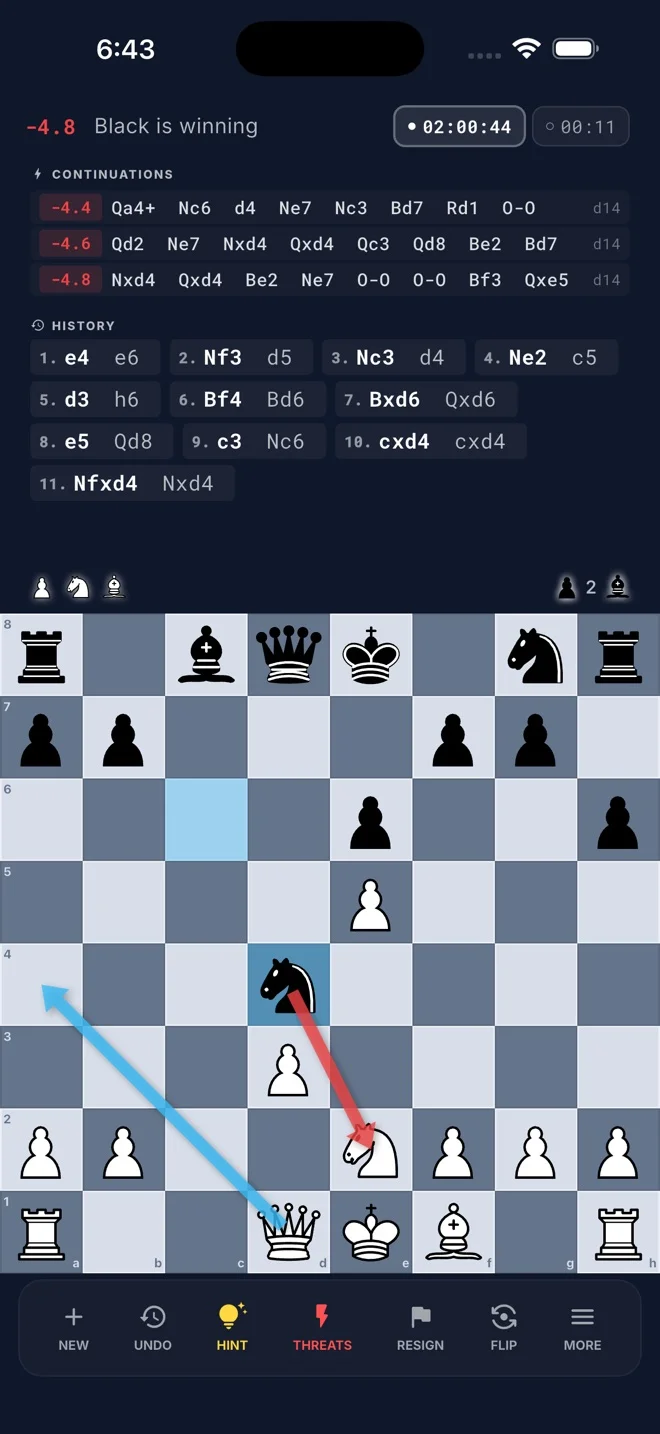
Green hint arrows show the best continuation; red danger arrows expose threats — all driven by live engine analysis.
Flexible Chess Clock
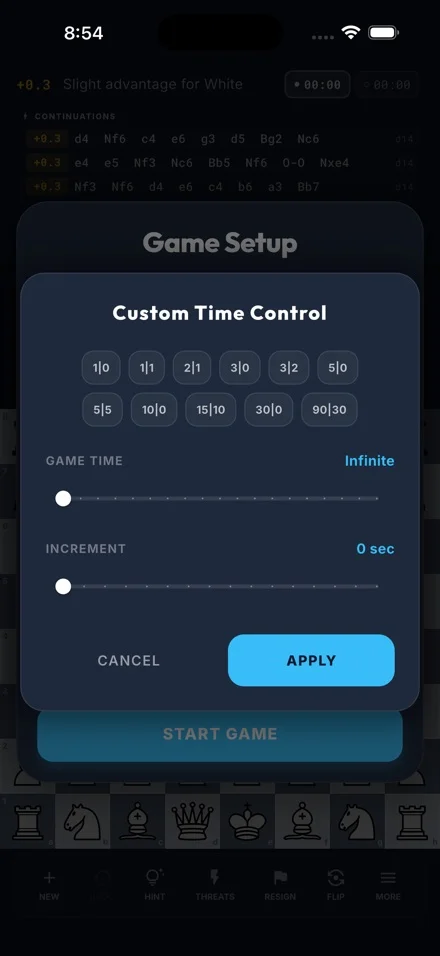
Choose from five time controls — Sudden Death, Increment, Delay, Hourglass, and Zen — before each game to match your preferred pace.
Game Library & PGN Tools
Store thousands of games locally with full PGN and FEN import/export support.
Chessnut Board Support
Native BLE connectivity for Chessnut Air and GO boards with LED highlights, RFID piece recognition, and move synchronization.
Every Way to Play
One interface, three modes — each purpose-built for a different kind of session.
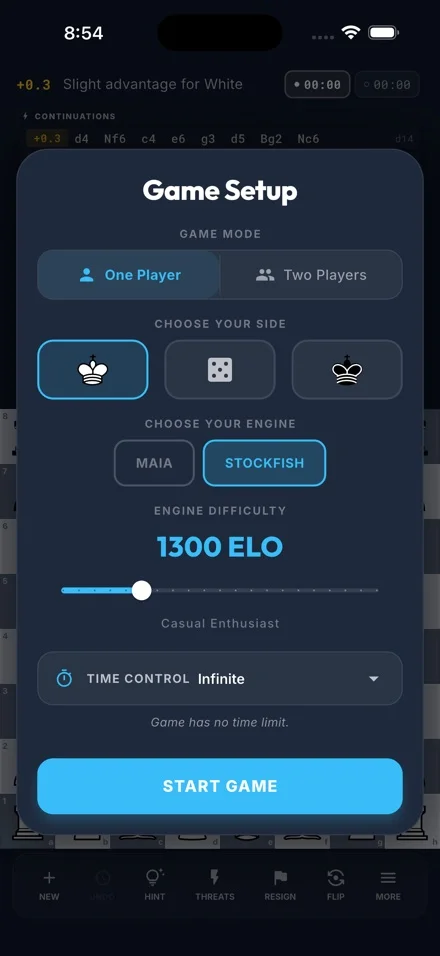
vs Engine
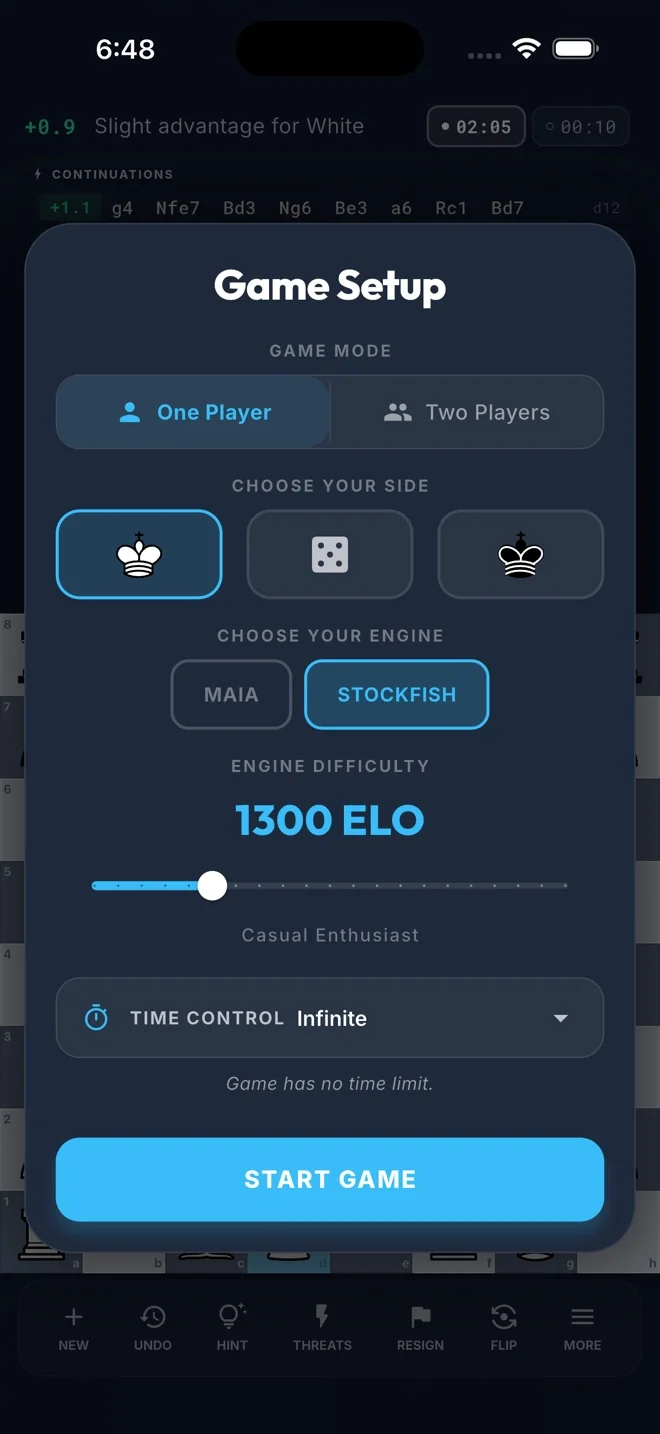
Face Stockfish 18 or Maia (LC0) with adjustable difficulty. Choose your side — white, black, or random — and configure a clock before the game begins.
Two Players — Local (Mobile)
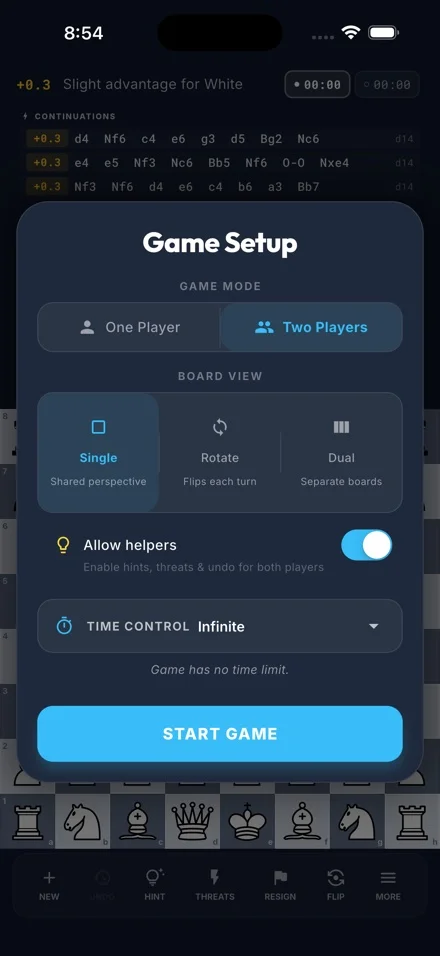
Pass-and-play on one mobile device with three board orientation options and an optional helpers toggle for casual games.
Analysis Mode
Load any saved game or imported PGN and step through every move. Navigate backwards and forwards freely, and launch a live game from any position mid-review.
The Training Room
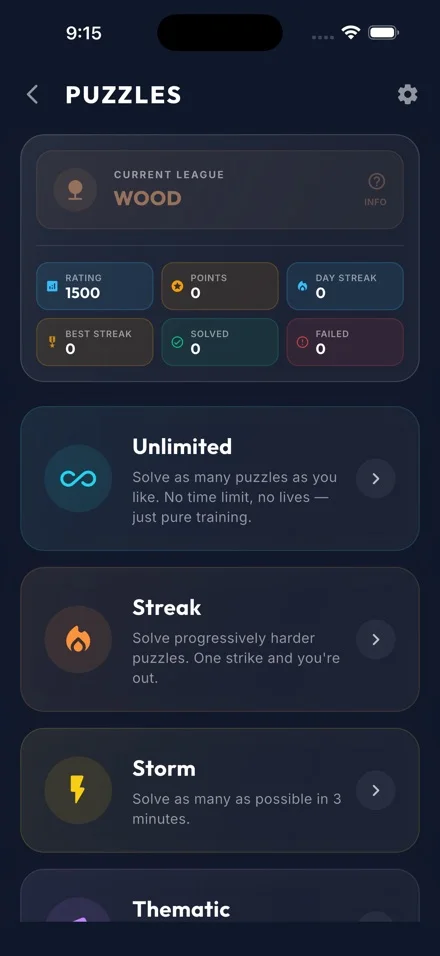
Seven specialized modes to sharpen every dimension of your tactical skill — rated and tracked entirely on-device.
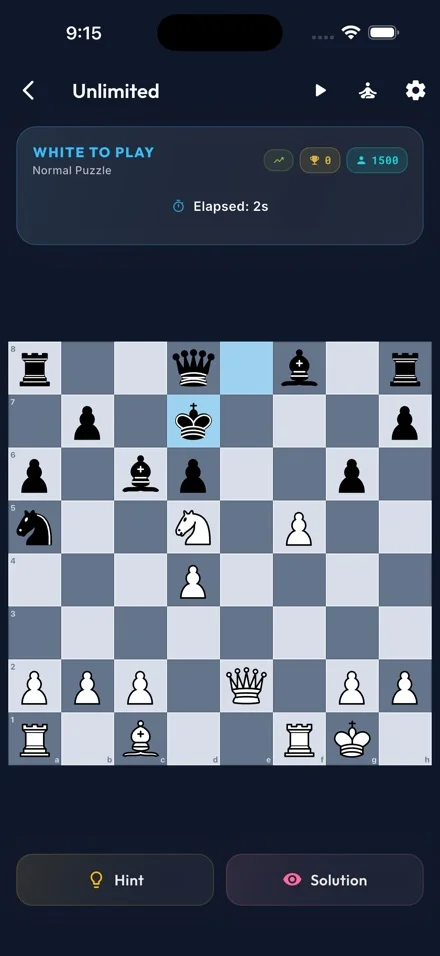
Unlimited
No time limit, no lives. Puzzles are drawn from a continuously refilling queue matched to your Glicko-2 rating. Train at your own pace indefinitely.
Streak
Keep your streak alive through four escalating difficulty phases — from easy openers to puzzles 400 points above your rating. One wrong move ends your run.
Storm
Solve as many puzzles as possible before the clock hits zero. Consecutive correct solves without hints earn time bonuses. Three lives keep the pressure on.
Thematic
Focus drill on a specific motif — fork, pin, skewer, back rank, and more. Puzzles are filtered by theme and tightly matched to your current rating band.
Personal Blunders
Puzzles generated from your own game history — positions where Stockfish flagged a blunder or critical mistake. Train the exact moments that cost you games.
Blind
Memorize the position during a brief timed window, then the board disappears. Solve entirely from memory. Harder positions with more pieces get a longer window.
No Tactic
Half the positions are genuine tactics; the other half are quiet, non-tactical decoys. Identify which is which — this mode trains pattern recognition over impulse.
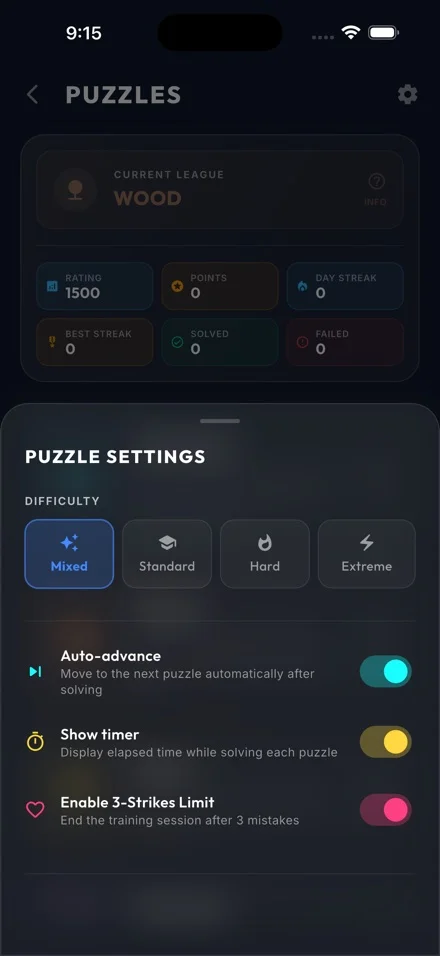
Progress & Tracking
Scoring & Leaderboards
The same scoring model used in Gambito Puzzles.
Your Analysis Toolkit
Configurable assistance for every skill level — enable what helps you learn, disable what you want to earn.
Hints
Tap for a one-shot green arrow showing the engine's best continuation. Long-press to enable sticky mode, keeping hints visible across moves until you turn them off.
Threat Visualization
Red arrows expose your opponent's most dangerous available threats. One-shot or sticky — the same toggle pattern as hints. Suppressed automatically when you are in check.
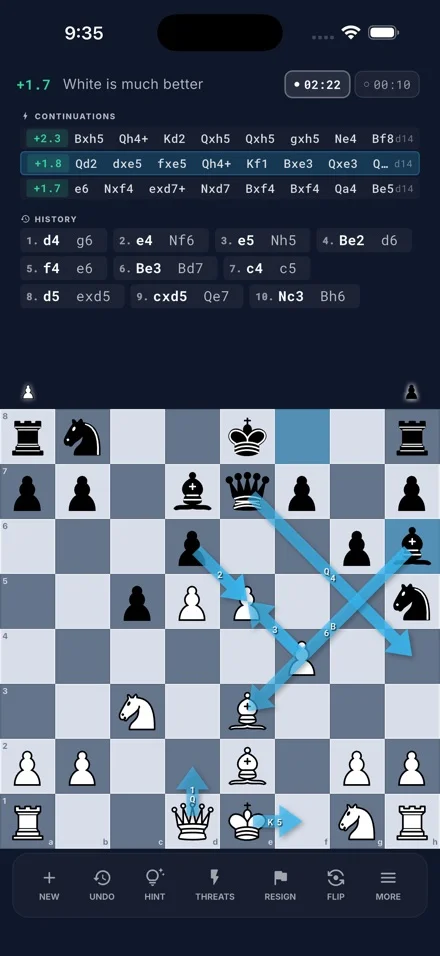
Continuation Lines
See up to three engine-suggested best move sequences at configurable depth. When Maia is active, a single human-like continuation is shown to reflect natural play rather than engine-optimal moves.
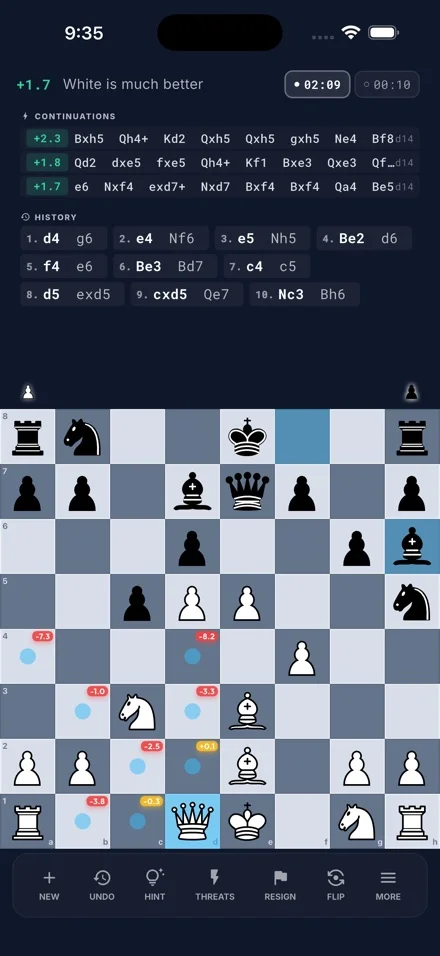
Per-Piece Move Eval
Select any piece and each legal target square shows a score chip — the resulting position evaluation or the net gain/loss relative to the board's current state.
Uncompromising Performance
Gambito runs local, full-strength engines — Stockfish 18 for deep tactical accuracy and Maia (LC0) for neural, human-like play. No server lag, no compromised evaluations.
- Smart Power Management: Analysis pauses automatically during move calculation and resumes instantly — preserving battery life without sacrificing strength.
- Bundled on Desktop: macOS, Windows, and Linux ship with engines pre-installed. No setup required — just open and play.
- Native on Mobile: iOS and Android build engine support directly into the app for full offline performance without any third-party dependencies.
Get Gambito
Choose your platform and elevate your chess experience today.




Help & Support
Do I need to install anything extra to use the engines?
No. Stockfish 18 and Maia (LC0) are bundled directly inside the app on all platforms. Open Gambito and the engines are ready to go — no additional downloads, accounts, or configuration needed.
Is my data private? Does it work offline?
Yes — fully. All engines run locally on your device, all games and puzzles are stored locally, and no data is ever sent to a server. No account is required to use any feature.
Why does engine analysis pause when I make a move?
On mobile, the app shares a single engine between playing and analysis to keep battery usage low. When you make a move the engine focuses on calculating the response, then analysis resumes automatically once the move is complete. On desktop this does not apply — playing and analysis run independently at the same time.
How do I get puzzles from my own games?
Play any game against the engine — Gambito automatically detects blunders and critical mistakes as you go. Those positions are saved to your Personal Blunders pool and immediately available in the Personal Blunders puzzle mode whenever you want to revisit them.
How do I import or export games?
To import, hold down the New Game button — a dialog will appear where you can paste a PGN or FEN string. To export, open any saved game and choose Export PGN. All game data stays on your device.
How do I enable sticky mode for hints and threats?
Long-press the Hint or Threat button to toggle sticky mode. When sticky mode is on, the arrows remain visible on the board after each move until you tap the button again to dismiss them. This is useful when you want continuous guidance throughout a game.
How do I connect a Chessnut board?
Open Settings and navigate to Board Connection. Make sure Bluetooth is enabled, then tap Scan. Supported devices — Chessnut Air and Chessnut GO — will appear in the list. Tap to connect. The app will detect pieces via RFID and sync board state automatically.
How do I contact support?
Email us at support@gambitochess.com.